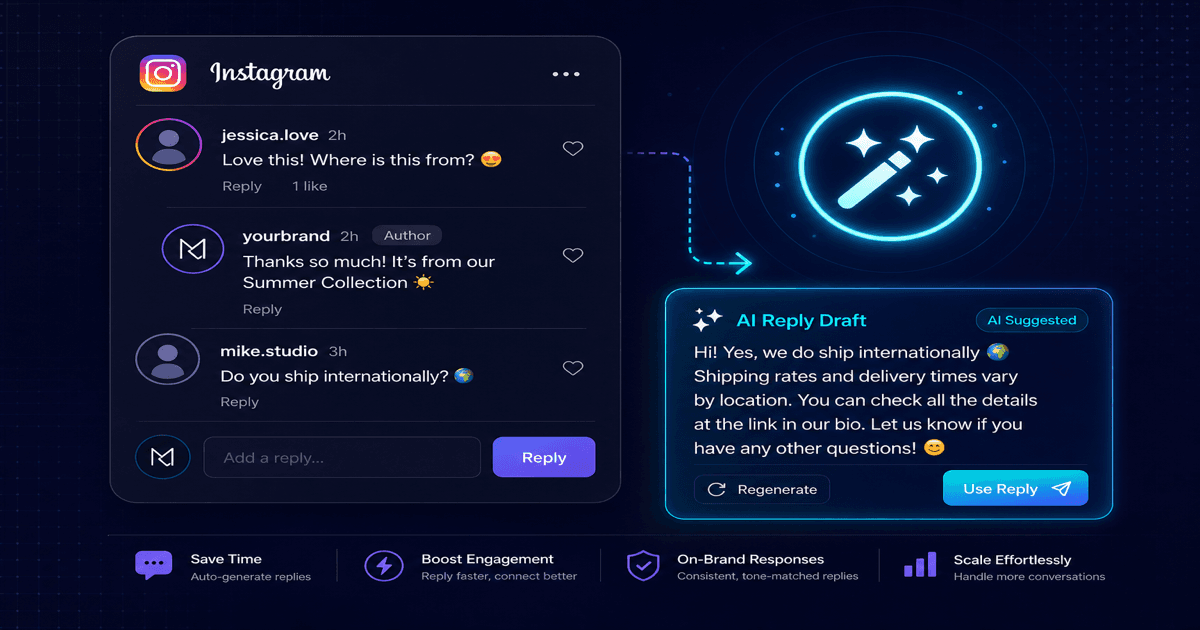
Flockx Now Drafts Your Instagram Replies
Select a comment or DM, and Flockx drafts a reply that matches your brand voice. Review, edit, send. Engagement that sounds like you, without the effort.
You check your Instagram. Fourteen new comments. Six DMs. All from real people who want a real response.
You know the right move is to reply to every single one. Engagement drives the algorithm. Personal replies build trust. But crafting thoughtful responses in your brand voice, with the right tone, takes time you don't have.
So some comments go unanswered. Some DMs sit unread until the 24-hour reply window expires. The people who reached out never hear back.
Flockx can help with that now.
Reply suggestions that sound like you
The Engagement tab in Social Studio already lets you read and reply to Instagram comments and DMs from one place. Now Flockx can draft those replies for you.
Click a comment, hit AI Suggest, and your team drafts a reply based on your brand voice, the comment's context, and your configured preferences. Review it, tweak a word or two if you want, and send. What used to take two minutes per reply now takes ten seconds.
One-click suggestions for comments
Select any comment and tap AI Suggest. Your team reads the comment, considers the post context, and drafts a reply in your voice.
Auto-suggest for DMs
When a new DM arrives, your team automatically drafts a suggested response. It's waiting in the input field when you open the conversation.
Always editable
Every suggestion is a starting point. Edit freely before sending, and the AI-drafted indicator reminds you to review before it goes out.
Nothing sends without you
Suggestions appear in the reply field, not in the commenter's inbox. You press Send. You stay in control.
How it works
The reply assistant works differently for comments and DMs, because the workflows are different.
Comments: you decide when
Comments are browsable. You might be scanning a thread, re-reading old replies, or checking what someone said last week. You don't want an AI suggestion every time you click a comment.
So for comments, suggestions are on-demand. Click a comment to open the reply drawer, then tap AI Suggest when you're ready for a draft. The button sits right above the text field, always visible, never in the way.
DMs: your team gets ahead of you
DMs are different. When someone messages you, they're waiting for a response. Speed matters.
If you enable auto-suggest in your engagement settings, your team drafts a reply the moment you open a conversation where the last message is from the other person. By the time you read their message, a suggested response is already sitting in the input field. Review it, adjust if needed, and send.
Auto-suggest is off by default
Configure your reply style
Flockx doesn't guess how to sound. You tell them. Four settings in Social Studio preferences control every suggestion:
Reply tone
Choose Match brand voice to use your existing brand guidelines, or pick a preset: Friendly, Professional, Witty, or Concise. Your brand voice setting from Brand Kit carries over automatically.
Reply length
Concise (1–2 sentences) for quick acknowledgments. Moderate (2–4 sentences) for thoughtful responses. Detailed (a full paragraph) when the conversation calls for depth.
Custom instructions
Free-text rules your team follows on every reply. Examples: "Always include our website link," "Never discuss pricing in public comments," "Sign off with a wave emoji."
Auto-suggest toggle
Turn this on and your team auto-drafts DM replies when a new inbound message arrives. Turn it off and suggestions are manual everywhere: you tap the button when you want help.
The reply drawer: a cleaner comment workflow
Along with reply suggestions, the comment section got a layout refresh. The old three-column view, with the post rail, comment thread, and reply form side by side, felt cramped on smaller screens. Now the reply form lives in a slide-in drawer that opens when you select a comment.
Two-column browsing
Post rail on the left, comment thread on the right. Clean and spacious, with no squeezed columns.
Reply drawer on demand
Click a comment and the reply drawer slides in from the right with the full reply form, AI Suggest button, and reply mode selector.
AI Suggest at your fingertips
The AI Suggest button sits at the top of your reply text field. One tap to draft, then review and send.
What stays the same
- Public and private replies Reply publicly under the comment thread, or send a private DM to the commenter. The mode selector is still there, now in the drawer.
- DM inbox The inbox tab works exactly as before. Thread history, message window indicator, and the send button, now with optional AI suggestions alongside.
- AutoDM monitors Keyword-triggered automatic DMs on specific posts are unchanged. The reply assistant handles interactive replies; AutoDM handles automated ones.
Who this is for
If you get more comments and DMs than you can reply to in a sitting, this is for you. The creator who wants to acknowledge every comment but runs out of time. The small business owner fielding product questions in DMs. The coach whose community expects personal responses.
Flockx handles the first draft. You handle the relationship.
Try it now
What's next
- Conversation-aware suggestions Reply suggestions that consider the full thread history, not just the latest message.
- Per-post reply rules Set different instructions for different posts: product launches get one tone, community posts get another.
- Reply analytics See which AI-suggested replies got the most engagement and let your team learn from the data.
Engage with everyone. Your team writes the first draft.