See Charts in Chat, Not Just Words
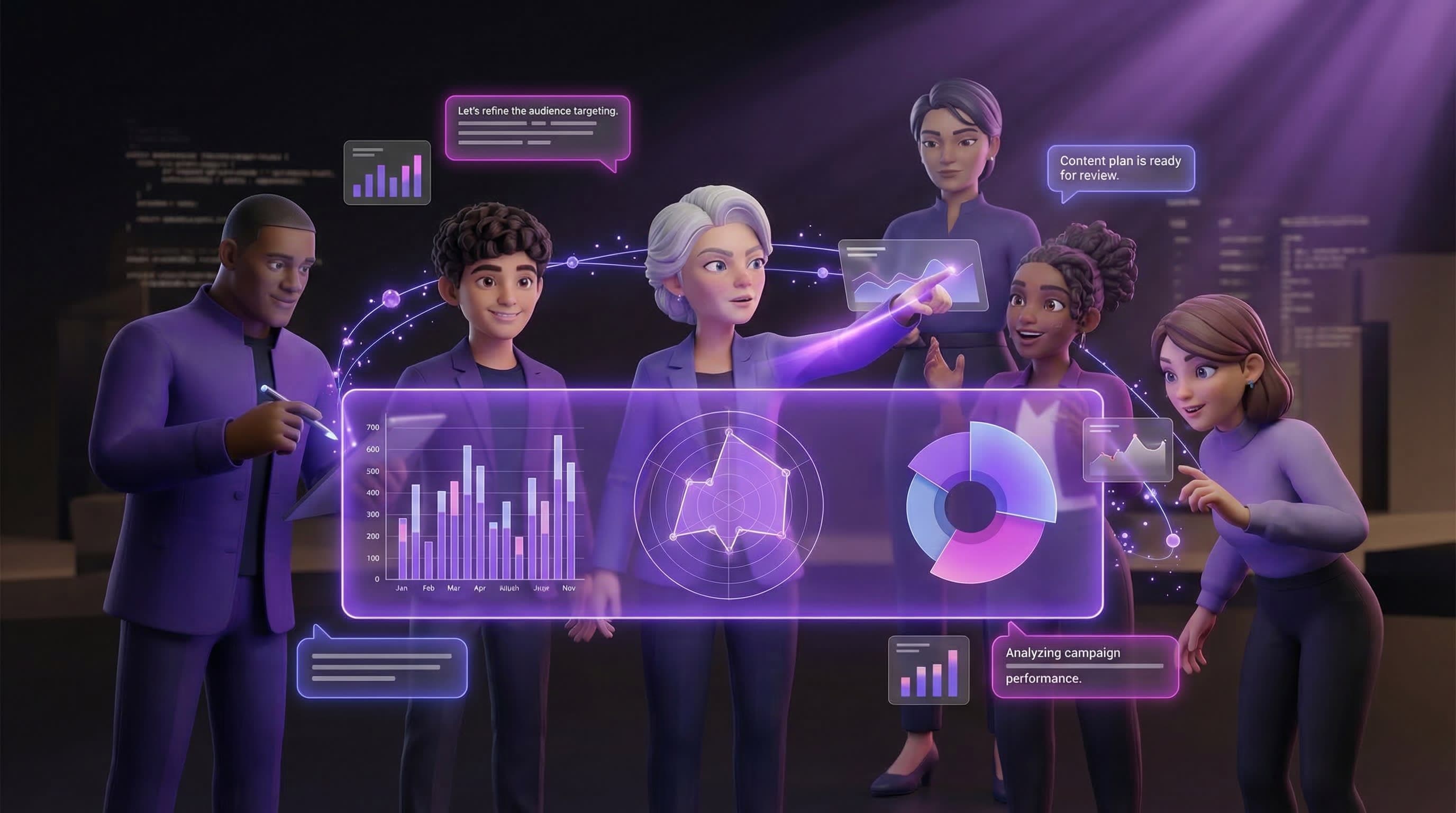
Ask Sage for a competitive analysis and she builds you a live radar chart. Ask Maya for campaign performance and she shows you the numbers in color. Your team doesn't just talk strategy anymore - they show it.
You asked Sage for a brand positioning breakdown. She came back with six paragraphs of analysis, a comparison across four competitors, and a scoring framework.
Good information. Hard to absorb. By the time you finished reading, you'd already forgotten the first comparison. You found yourself wishing you could just see it.
Now you can.
Your team speaks in visuals when it matters
When a chart, graph, or interactive breakdown would communicate something better than text, your team creates one. Right there in the conversation. No extra tools, no exports, no tab-switching.
Ask Maya to compare engagement across your social channels - she shows you a bar chart. Ask Sage to map out a competitive landscape - she builds a radar chart you can hover over. Ask Otto to break down where your audience drops off - he gives you a funnel visualization.
These aren't static images. They're live, interactive visuals that respond to your cursor, display data on hover, and look sharp in both light and dark mode.
What your team can build for you
Your team decides when a visualization adds clarity. They won't force a chart onto a simple answer - but when the data warrants it, they deliver:
Charts and graphs
Bar charts, line graphs, radar plots, scatter charts - whatever shape makes the data click. Sage and Maya use these when comparing numbers across categories or tracking trends.
Breakdowns and distributions
Pie charts, doughnut charts, and percentage breakdowns. Perfect for seeing where your time, budget, or audience attention actually goes.
Interactive tables and matrices
Sortable comparison tables, feature grids, and scoring matrices. When you need to weigh options side by side, your team lays it all out.
Calculators and decision tools
Interactive scoring tools, ROI calculators, and assessment checklists. Sage builds these when your question needs more than a yes or no.
It just appears in the chat
There's no mode to toggle, no button to press. When your team decides a visual would help, it shows up inline - right after the explanation, right where it makes sense. Your team writes the context before and after the visualization, so everything reads as one coherent answer.
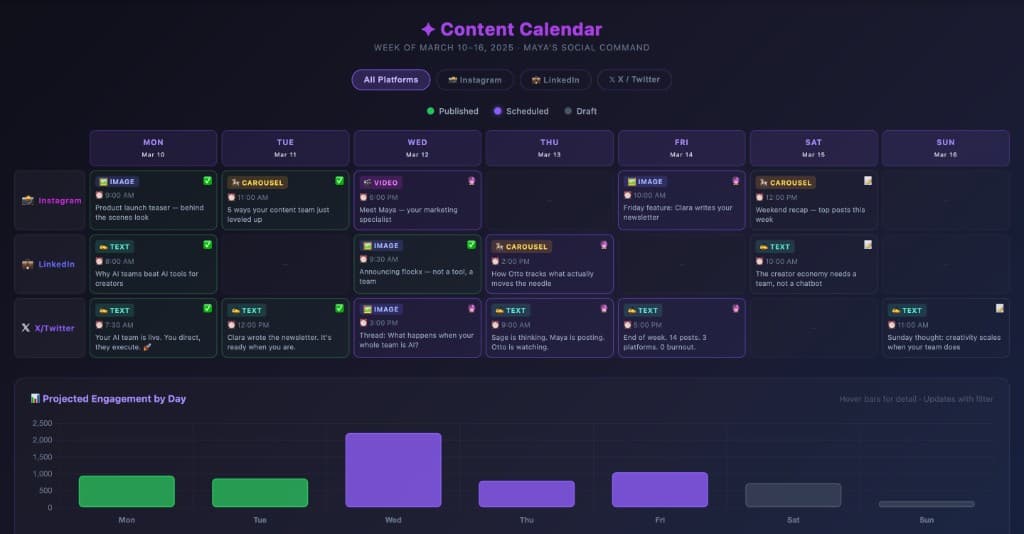
Maya built this content calendar right inside the conversation - a full week of posts across three platforms, with projected engagement by day.
They still explain the insight
Expand it, download it, share it
Every visualization comes with two controls:
Fullscreen mode
Tap the expand button to fill your screen. See every data point clearly, scroll through larger visualizations, and hit Escape to drop back into the conversation.
Download as HTML
Save the visualization as a standalone file you can open in any browser. It stays interactive - hover effects, animations, everything. Drop it in a presentation deck or share it with a collaborator.
Try it with your team
The best way to see what your team can do is to ask them something that begs for a picture. Here are a few starting points:
- Competitive analysis "Sage, compare my brand against [competitor A] and [competitor B] across content quality, community engagement, and brand recognition."
- Content performance "Maya, break down my content performance by platform over the last month. Show me where the engagement is."
- Audience insights "Otto, map out where my audience drops off in the onboarding flow. Show me the funnel."
- Strategic planning "Sage, build me a scoring matrix comparing three growth strategies for next quarter."
Ask for what you need
Secure by design
Every visualization runs in its own sandboxed environment, completely isolated from the rest of the page. It can't access your data, your session, or anything outside of what your team built for you. What you see is exactly what was created - nothing more.
Sandboxed rendering
Visualizations run in an isolated container. No access to your cookies, your session, or any data on the page.
Self-contained
Everything your team creates is fully contained in the visualization itself. No external network calls, no tracking, no third-party code you didn't ask for.
Your team just got more articulate
Good teams don't just have answers - they have the right way to deliver them. Sometimes that's a clear paragraph. Sometimes it's a chart that makes the point in two seconds flat. Now your Flockx team can do both.
Make the thing. Your team handles the rest.
See your team's new visual skills
Start a conversation with Sage, Maya, or any team member and ask them something that deserves a picture. Charts, graphs, matrices - they'll figure out the format.