Presentations, Meet Chat
Ask your team for a pitch deck. Preview every slide. Download the final file. All without leaving the conversation.
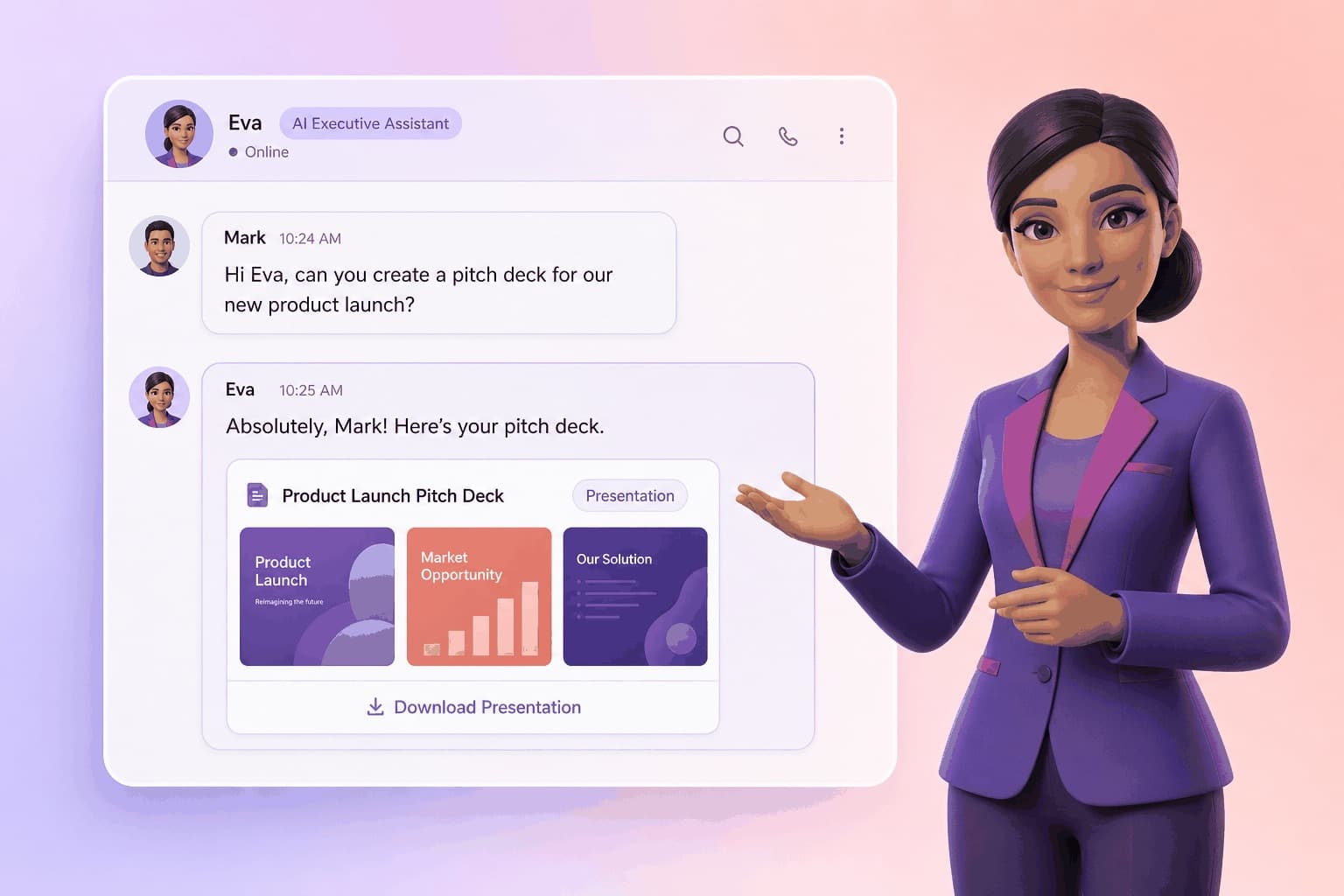
You're in a conversation with Eva. You say "I need a pitch deck for tomorrow's sponsor meeting." She builds it. And now - instead of downloading a mystery file and hoping it looks right - you can preview every slide right here in the chat.
No switching tabs. No opening PowerPoint. The slides appear in the conversation and you can review, request changes, and download when it's ready.
The Old Way vs. The New Way
Before: You ask your AI for a presentation. It generates a file. You download it, open it in PowerPoint or Google Slides, realize the second slide has a typo and the color scheme is off, go back to the chat, describe the problem, wait for a new file, download again, check again. That loop can take 30 minutes for a 10-slide deck.
Now: You ask, Eva builds the deck, and a preview card appears in your chat with slide thumbnails. You scroll through them right there. "Slide 3 needs a stronger opening stat." Eva updates it. New preview appears. You scroll through, everything looks right, you hit download. Done.
The iteration loop went from 30 minutes to 3 minutes. Same quality. Less friction. More time for the actual meeting.
What It Looks Like
When Eva finishes building your deck, an artifact card appears in the conversation. It shows the file name, the slide count, and thumbnail previews of each slide. You can click to expand and scroll through the full deck.
The download button is right there on the card. One click gives you a .pptx file you can open in PowerPoint, Google Slides, or Keynote. No hunting through file managers or download folders.
Everything happens in the conversation thread. The context stays intact. If you want to revisit the deck two weeks later, scroll up and the preview is still there.
When to Use This
Sponsor pitch decks
"I need 8 slides for my meeting with Nike tomorrow. Include our engagement numbers from last quarter."
Client proposals
"Build a proposal deck for the photography project. Use the brand guidelines we set up."
Content recaps
"Put together a monthly recap presentation with our top-performing posts from April."
Team updates
"Create a quick 5-slide update for my team meeting. Focus on what shipped this week."
You Direct. Eva Builds.
You don't need to know how to use PowerPoint. You don't need to fight with slide layouts or font sizes. You describe what you want in plain language. Eva turns it into a professional deck. You review it in 30 seconds. That's the entire workflow.
The creative judgment is yours. The production is hers. You decide the story, the structure, and the emphasis. Eva handles the layout, the formatting, and the file generation. You don't touch a template. You direct.
Quick tips for better decks
Be specific about slide count. "Make it 8 slides" gives better results than "make a deck."
Reference your brand. If you've set up Brand Guidelines, Eva uses your colors and tone automatically.
Iterate in context. You don't need to re-describe the whole deck. Just say "make slide 4 more visual" or "add a slide about pricing."
Download when ready. The download button on the preview card gives you a .pptx file you can open in PowerPoint, Google Slides, or Keynote.
Build your next deck in chat
Ask Eva for a presentation. Preview every slide. Download the final file. All from the conversation.