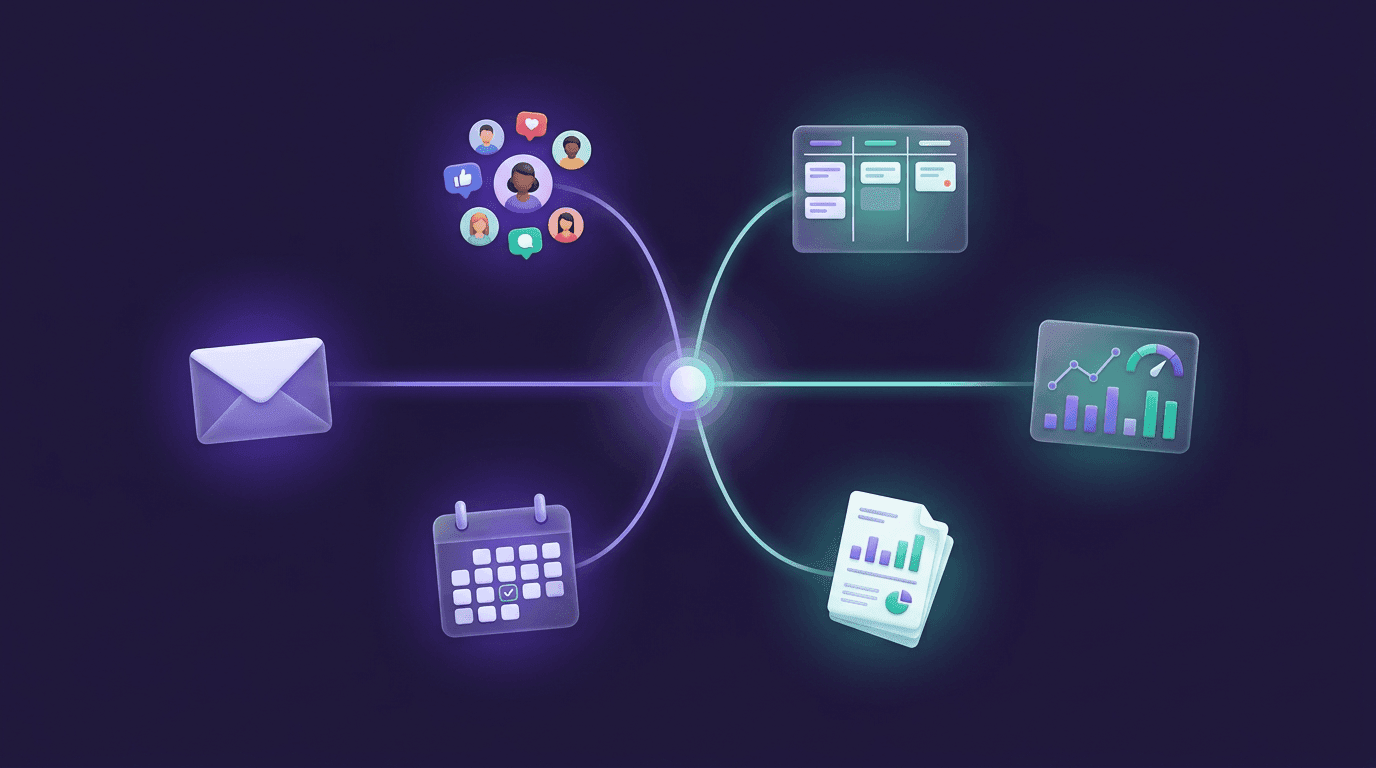
Connecting Your Tools to Flockx
Your team can draft, plan, and analyze. Connect your tools and they can execute.
The Gap Between Drafting and Doing
Flockx is already good at thinking. Sage can research competitors. Clara can write blog posts. Maya can plan a social media campaign. Eva can organize your week. But without access to your actual tools, every output ends the same way: "Here is the draft. Please copy it to the right place."
That last mile of copying, pasting, scheduling, and publishing is where time quietly disappears. The research brief is finished in 60 seconds, then you spend 10 minutes formatting it in Google Docs. Maya planned a week of social content, but you still have to log into LinkedIn, Twitter, and Instagram to post it manually. Clara wrote the email sequence, but someone has to paste each message into your email platform.
Connecting your tools closes that gap. When Flockx has access to the platforms you use every day, they go from suggesting to executing. The draft becomes a scheduled post. The brief becomes a shared document. The campaign plan becomes live content.
This Post Covers Action Integrations
If you are looking for how to upload documents, websites, and files as knowledge for your team, that is covered in Training Flockx. This post focuses on tool connections that let your team take action: posting, scheduling, sending, and updating the platforms where your work lives.
What Connecting a Tool Looks Like
You do not need to configure API keys or edit settings files. The connection flow is built into the task setup. When a task requires access to one of your tools, you connect it right there.
Start a Task That Needs a Tool
Open a task that involves an external platform. For example, "Schedule this week's LinkedIn posts." The task form includes a connection prompt for LinkedIn.
Click Connect and Authorize
Click the connect button. A standard OAuth window opens for the platform (the same kind you see when you sign into any app with Google or LinkedIn). Authorize Flockx, and the connection is live.
The Integration Persists
You connect once. From that point forward, any task that uses that platform can access it automatically. You do not need to reconnect for each task.
The entire process takes about 15 seconds. After that, your team can act through the connected tool whenever a task calls for it.
Before and After: What Changes
The best way to understand the value of tool connections is to see the difference in what your team can deliver.
Before connecting
"Here are 7 LinkedIn posts for the week. Copy each one and schedule them manually."
After connecting LinkedIn
"I have scheduled your 7 LinkedIn posts for this week. Monday through Friday at 9 AM, with two bonus posts on Tuesday and Thursday afternoon."
Before connecting
"Based on general trends, I recommend focusing on video content this month."
After connecting Google Analytics
"Your blog traffic is up 23% this month, driven by 3 posts about AI workflows. Your video content has a 4.2 minute average watch time. I recommend doubling down on the AI workflow series."
Before connecting
"Here is a draft follow-up email. Please paste it into your email client and send it."
After connecting Gmail
"I have drafted the follow-up email and placed it in your Gmail drafts folder. Review and hit send when you are ready."
Before connecting
"Here are 5 tasks for this week. You will need to add them to your project board yourself."
After connecting Notion
"I have added 5 tasks to your Notion board with deadlines, priority labels, and assignee tags. Your Monday morning standup view is ready."
The shift is consistent: from "here is the output, go do something with it" to "it is done, review when you are ready." Your team moves from advisor to operator.
Integration Categories
Tool connections are organized into categories based on what they enable your team to do. Here are the major categories and the team members who benefit most from each.
Social Platforms
LinkedIn, Twitter/X, Instagram
 Primary: Maya, Marketing Strategy
Schedule posts across platforms. Pull engagement metrics to inform strategy. Respond to comments. Maya can plan, create, and publish a full social campaign without you touching the platform.
Analytics
Google Analytics, social platform insights
 Primary: Otto, Operationsand
 Sage, Strategic Planning
Pull real traffic data, conversion metrics, and audience behavior into reports and strategy recommendations. Instead of generic advice, your team gives you insights grounded in your actual numbers.
Gmail, Outlook
 Primary: Eva, Executive Assistantand
 Alex, Ambassador
Draft and place emails in your inbox for review. Eva handles operational emails and follow-ups. Alex drafts personalized outreach. You review and send, or set up rules for automatic sending on approved templates.
Project Management
Notion, Asana, Monday.com
Primary: Eva, Executive AssistantandOtto, OperationsCreate tasks, update statuses, and organize boards. When Eva plans your week, the tasks land directly in your project tool. When Otto identifies process improvements, the action items appear as cards in your workflow.
Creative and Document Tools
Google Docs, Canva
 Primary: Clara, Content Creation
Create and update documents directly. When Clara writes a blog post, it lands in your Google Docs as a formatted document ready for review. When she creates social graphics, the assets are ready in Canva with your brand templates applied.
Security and Control: You Stay in Charge
Giving Flockx access to your tools is a trust decision. Flockx is designed to keep you in full control of what your team can and cannot do.
You approve every connection.
No tool is connected without your explicit authorization through the OAuth flow. Your team cannot add integrations on their own.
Permissions are scoped.
Each integration requests only the permissions it needs. Connecting Gmail for drafting does not give access to your entire inbox history. You see exactly what is being requested before you authorize.
You can revoke access anytime.
Changed your mind? Disconnect a tool instantly. The integration stops and your team goes back to drafting instead of executing for that platform.
Review before action.
For sensitive actions (sending emails, publishing posts), your team can be configured to draft and queue rather than execute directly. You review and approve before anything goes live.
Start with Low-Stakes Connections
If you are new to tool connections, start with something low-risk like Google Docs or your project management tool. Get comfortable seeing your team place deliverables directly into your workflow. Then move to higher-stakes integrations like social publishing and email as trust builds.
From Advisor to Operator
Without tool connections, Flockx is a panel of advisors. They can plan, draft, analyze, and recommend. All valuable. But the output still needs you to carry it across the finish line.
With tool connections, your team becomes an operations layer. Maya does not just plan your social calendar. She publishes it. Eva does not just suggest a task list. She creates it in Notion. Sage does not just recommend a strategy. He pulls your real analytics to back it up.
The team metaphor stops being a metaphor. They are specialists who can act on your behalf, within the boundaries you set, using the tools you already use.
You stay in the driver's seat. You just have a team that can actually turn the wheel.
Connect Your First Tool
Pick a platform you use every day, connect it in 15 seconds, and see what your team can do when they can act, not just advise.