How to Add Flockx to Discord
Connect your AI specialists to your Discord server. Engage your community, answer questions, and scale your presence—all with your voice.
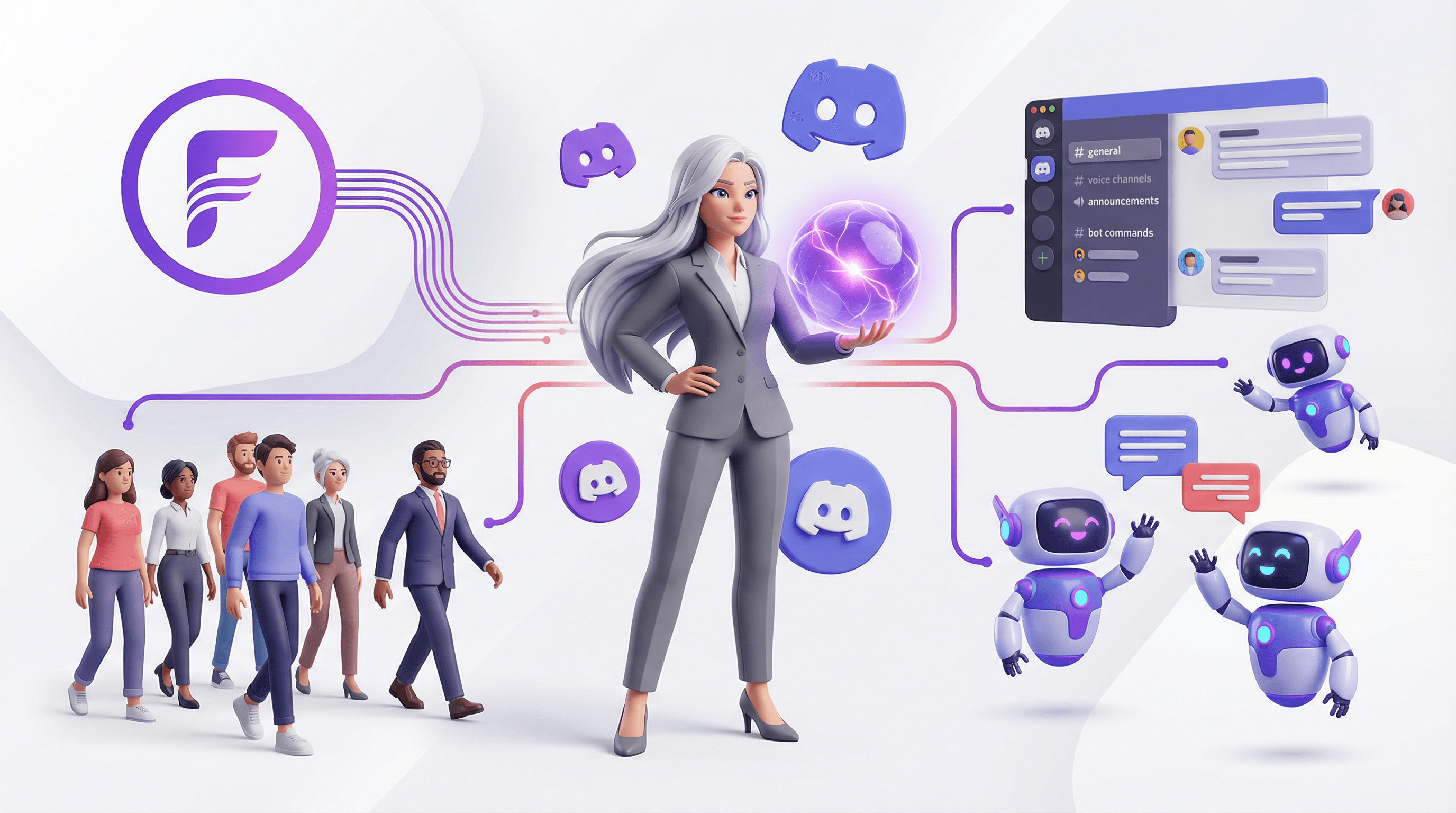
Your Discord community deserves better than silence or generic bot responses. With Flockx integrated, you can provide instant, knowledgeable engagement that actually sounds like you—even when you're not online.
What Discord Integration Enables
Once connected, your AI specialists can respond to community questions, share updates, provide support, and engage members—all while maintaining your voice and referencing your knowledge base.
Setup: Step by Step
Enable Developer Mode
First, enable Discord Developer Mode to access your server's ID:
- • Open Discord and click User Settings (gear icon)
- • Select "Advanced" from the left sidebar
- • Toggle "Developer Mode" to ON
Developer Mode gives you access to IDs needed for bot integration.
Get Your Server ID
With Developer Mode enabled, copy your server ID:
- • Right-click on your server's icon in the Discord sidebar
- • Click "Copy Server ID" at the bottom of the menu
- • Save this ID—you'll need it for the next step
Connect in Flockx
Now connect Flockx to Discord:
- • Open the Flockx app and go to "My Team"
- • Select the specialist you want to connect
- • Find the Discord integration section
- • Paste your Discord Server ID
- • Click "Connect" to authorize
Review permissions carefully to ensure your AI can access the channels you need.
Test the Connection
Verify everything works:
- • Go to your Discord server
- • Send a test message mentioning your AI
- • Confirm you receive a response
What Flockx Does on Discord
Once connected, your AI specialists become active members of your Discord community:
Discord Capabilities
- Answer questions: Respond to community members using your knowledge base and voice.
- Share updates: Post announcements, new content alerts, and important information.
- Provide support: Help members navigate resources and find what they need.
- Maintain presence: Keep your community engaged even when you're not online.
- Learn continuously: Every interaction helps your AI understand your community better.
Start Simple
Begin with basic features and gradually expand your AI's responsibilities as your community gets familiar with it. Let members know they're interacting with Flockx so expectations are clear.
Discord Integration Best Practices
- Train before connecting: Make sure your AI has your knowledge base and personality configured before going live.
- Set clear expectations: Let your community know they're interacting with Flockx and what it can help with.
- Monitor early interactions: Review responses during the first few days to catch any issues and provide feedback.
- Define boundaries: Configure what your AI should and shouldn't handle—some questions should still come to you.
- Keep knowledge current: Update your AI's knowledge base when you release new content or change important info.
Ready to Connect?
Discord integration takes just a few minutes to set up. Once connected, Flockx becomes a 24/7 presence in your community—answering questions, sharing updates, and engaging members with your voice.
The setup is simple, but the impact is significant. Your community gets faster responses, more consistent information, and the feeling that you're always there—even when you're focused on creating.
Connect Flockx to Discord
Scale your community engagement while staying true to your voice. Flockx is ready to help.